Tutorials
How to Stream Without Showing Your Face Using a Virtual Avatar
Stream without showing your face using a virtual avatar. Compare PNG, Live2D, and 3D options, set up Virmii camera tracking, and test your OBS scene for privacy.
Choose how you want to appear on stream
You can stream without showing your face by broadcasting your game, presentation, or other content with microphone audio. An avatar is optional: use a static illustration, a voice-reactive PNG character, or a tracked 2D or 3D model if you want a visual presenter.
First decide whether you want a camera running at all. A static image or basic microphone-reactive PNGTuber does not need one. Camera-based tracking uses your face as input without requiring you to include the camera video in the broadcast.
For Virmii's 3D workflow, the sequence is prepare a model → create a private OBS URL in Live Studio → test camera tracking → add the stage URL to OBS → configure audio separately → record a privacy and performance test.
An avatar can keep your face out of the intended broadcast, but it does not make you anonymous. Your voice, account names, notifications, and captured windows can still reveal information. Check the entire scene, not just the avatar layer.
A presenter avatar is different from a chat overlay or AI host
A presenter avatar represents you while you speak or act. Depending on the setup, it responds to microphone levels, camera tracking, manual controls, or a combination of inputs.
A chat overlay pet may react to messages or audience events instead. An automated AI host may generate dialogue and speech. Those are different jobs, even if they all appear as characters on screen.
Virmii Live Studio uses camera-derived tracking to drive supported movements and expressions on a 3D avatar. It does not generate your live dialogue or turn microphone audio into phoneme-based mouth shapes. Your microphone is a separate audio source in OBS.
Keep that distinction in mind when comparing tools. "Animated avatar" does not tell you whether a character follows your face, switches images when you speak, or performs a prerecorded animation.
Choose between a static image, PNGTuber, Live2D, and 3D
Choose the simplest setup that gives you the reactions you need. You can add more movement later without delaying your first recording.
| Format | What drives it | What you need to prepare | How it reaches OBS |
|---|---|---|---|
| Static image | No tracking | A suitable image you have permission to use | An Image source |
| Reactive PNGTuber | Usually microphone levels; optional extra controls depend on the app | Consistent silent and speaking images, plus any additional states | The PNGTuber app's supported capture or browser output |
| Rigged Live2D avatar | Inputs supported by the tracking app and model | A finished Live2D runtime model and a compatible tracker | The tracking app's documented output method |
| 3D avatar | Supported tracking inputs mapped to the model | A compatible model with the rig and expressions your workflow needs | The 3D app's supported output; Virmii uses a private Browser Source stage |
A layered illustration is not a finished Live2D rig, and a VRM file is not a promise of every facial expression or full-body tracking. Check the actual result in the app you plan to use. The PNGTuber, Live2D, and 3D comparison explains the tradeoffs in more detail.
There is no reliable CPU or GPU percentage that applies to every avatar setup. The model, tracking resolution, renderer, game, and OBS encoder all affect performance. A static image or simple PNG setup can be a useful starting point on limited hardware, but test the combined workload rather than assuming any option has negligible cost.
Virmii's workflow in this article is for 3D avatars. It is not a Live2D authoring tool or a general-purpose PNGTuber image-switching app.
Make the avatar readable in your scene
An avatar that looks clear in a large preview may be difficult to read in the corner of a stream. Test at the size your audience will actually see.
For gaming, place the character over both bright and dark scenes and check whether its outline remains visible. Avoid covering the game interface. For teaching, keep the character away from code, captions, and presentation text. For chatting, a larger face may make subtle expressions easier to notice.
- Choose a silhouette that stays recognizable when reduced in size.
- Check contrast against the content behind the avatar, not just against a plain preview background.
- Make sure blinking and mouth changes remain visible without enlarging the character enough to obscure your content.
- Leave room around hair, ears, and accessories so ordinary head movement does not crop them unexpectedly.
You do not need a particular art style for a particular topic. Choose a design that suits your presentation, then test the layout. The character design guide covers silhouette, color, and outfit decisions.
Prepare the equipment and understand the privacy boundary
For a camera-tracked Virmii setup, you need a compatible browser and computer, a working camera, your avatar, and OBS. Add a microphone if you will speak. A dedicated 1080p USB webcam is not a universal requirement; an existing camera may be adequate if it produces a stable, clear view of your face.
Place the camera near eye level with soft light in front of you. Check browser camera permission and close other applications that may be occupying the device. You do not need to add the physical webcam as an OBS source to use it for tracking in Virmii.
What stays local, and what reaches the stage?
Virmii processes raw camera video locally in the browser for tracking. The controller sends movement and expression values to the private OBS stage through a WebRTC data connection; the stage renders the avatar. This connection does not send your webcam video to OBS. The Privacy Policy describes camera processing and live connection coordination.
Local processing is not the same as processing exclusively on the GPU. The tracking implementation can fall back to the CPU, and tracking, rendering, and OBS encoding still use your computer's resources.
The camera tracking request does not capture microphone audio. Virmii's camera-driven mouth response follows visible mouth movement, not speech recognition or audio visemes. Set up your voice in OBS independently.
flowchart LR
    A["Camera frames"] --> B["Live Studio: local face tracking"]
    B -->|"Movement and expression values over WebRTC"| C["Private stage: avatar rendered in OBS Browser Source"]
    C --> D["OBS scene and recording"]
    E["Microphone audio"] --> D
    F["Game or presentation capture"] --> D
This diagram describes live tracking, not the whole service. Uploading character images or generating models is a separate workflow that uses backend services. Do not assume that everything in a browser-based application is local.
Check for accidental exposure
Local tracking does not prevent you from accidentally broadcasting a camera preview or another identifying window. Before going live:
- Remove unneeded webcam sources from the scenes you will use. Check nested scenes and transition destinations too.
- Prefer capturing the intended application when practical, and inspect the result. Full-display capture can include unrelated windows, account details, or notifications.
- Keep Live Studio, camera previews, account settings, and private stage URLs outside the captured area.
- Review desktop notifications, browser profiles, filenames, and any personal information visible in your content.
- Prepare a safe standby scene and test switching to it if tracking or capture stops working.
Treat the private stage URL like a password. If it is exposed, reset or disable it in Virmii and update the source in OBS. An avatar hides your face only when the rest of the broadcast is configured accordingly.
Prepare or import your character
You can commission a model, buy a premade avatar, make one with suitable authoring software, or use an image- or text-based generation workflow. Check the license and the actual delivered files before spending time on setup. The model creation guide explains the different routes.
For a purchased model, confirm the supported app and format version, expressions, and permitted uses. A good-looking preview is not enough; use the premade model buying checklist to assess the package.
Virmii supports a 3D VRM workflow. Compatibility depends on the data in the model and the features the application supports. Read the VRM file guide before moving an avatar between applications.
Uploaded VRM expressions and generated expression artwork are different
A compatible uploaded VRM uses its existing expression bindings. A missing mouth shape or broken eyelid cannot be repaired simply by enabling camera tracking.
For Virmii-generated models, Generate expressions is a separate action that prepares AI expression artwork for Virmii previews, Live Studio, and the OBS stage. That artwork is not embedded in downloaded VRM files as facial shape keys. Do not expect a download opened in another app to reproduce the Virmii preview automatically.
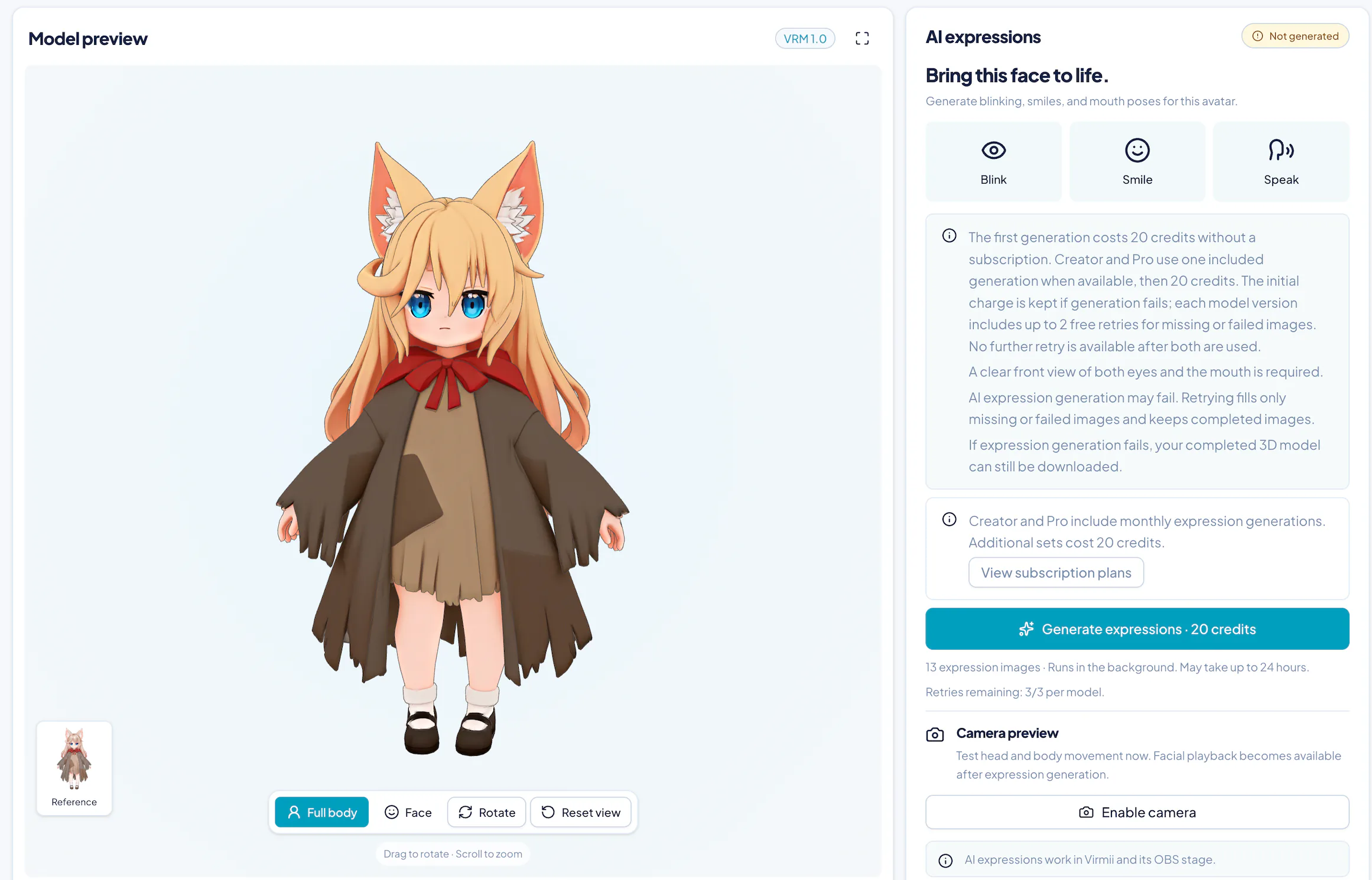
The model is ready in this example, but the expression artwork has not been generated. These are separate preparation steps.
The screenshots in this guide come from our October 20, 2026 hands-on comparison. They illustrate the setup at that time; any visible credit amounts are not a substitute for current pricing.
Inspect the model and its expression playback before planning a broadcast around them. See the AI expression guide for the distinction. Model and expression generation use credits or applicable plan allowances; browser tracking does not make those generation steps free. Check current pricing before generating.
Configure camera-based head, eye, and mouth tracking
Start in Live Studio before adding the stage to your broadcast scene.
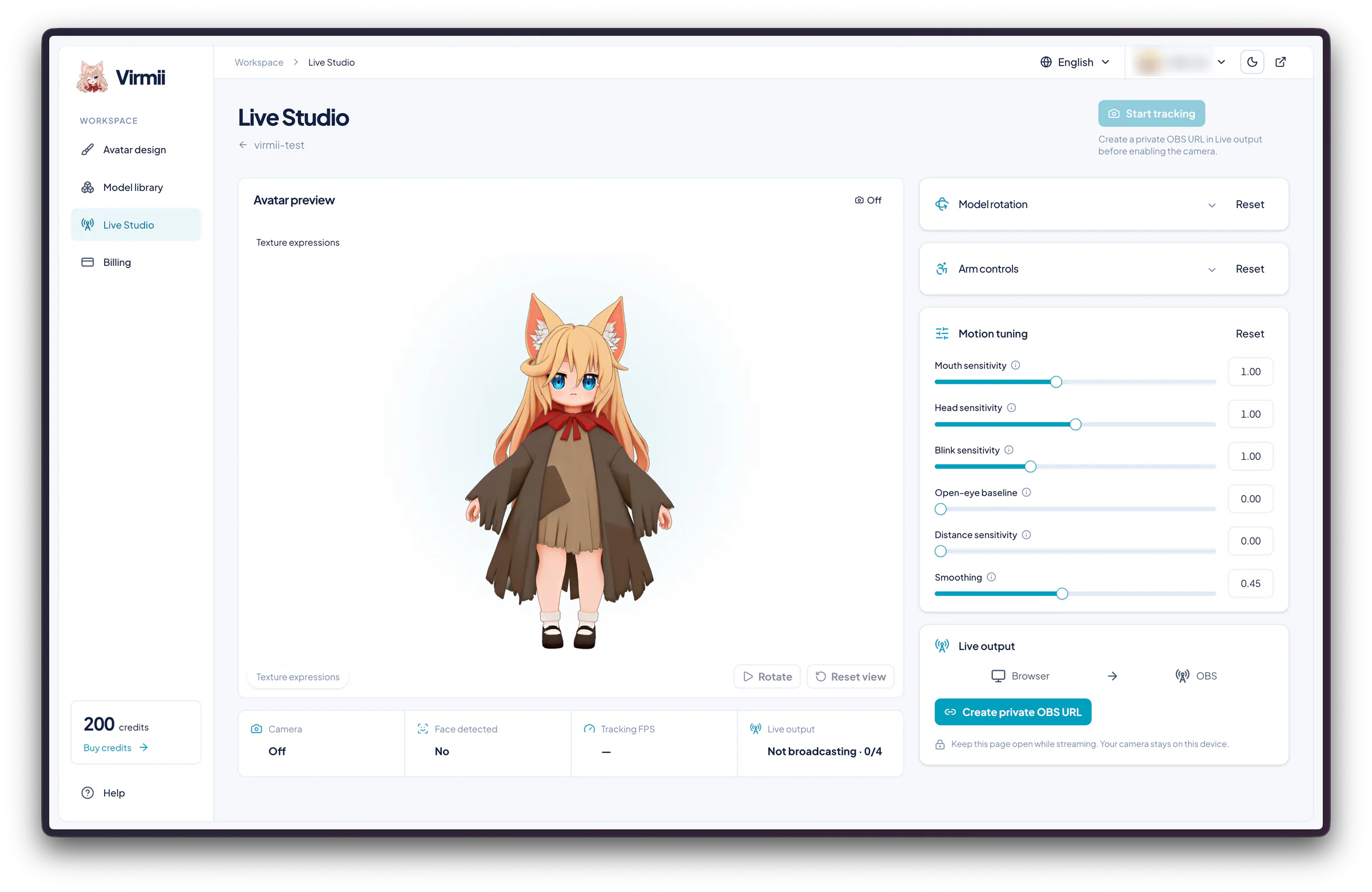
Live Studio requires a private OBS URL before tracking can start. The screenshot shows the setup screen, not an active tracking session.
- Load the model and select Create private OBS URL. Then select Start tracking and allow browser camera access.
- Sit in your normal streaming position with your face visible. Set the forward pose once tracking has detected your face.
- Turn your head slowly in each direction, blink, and open and close your mouth. Check the return to a neutral expression.
- Adjust the available head, blink, and mouth sensitivity controls to match your movements. Change one setting at a time so you can see its effect.
- Adjust smoothing if movement is jittery. More smoothing can reduce jitter but also make the avatar feel slower to respond.
- Repeat the test while your usual game or presentation is running.
Do not try to fix camera-driven mouth movement by raising microphone gain. If the avatar's mouth looks wrong, check the lighting, face detection, mouth sensitivity, and the model's expression setup. Audio levels in OBS are a separate check.
Other avatar applications may offer audio-driven lip sync, but that is not a selectable audio-viseme mode in Virmii's camera workflow described here. If you need a camera-free setup, choose a tool that explicitly supports the microphone-reactive or manual controls you want.
Use the webcam face-tracking guide if the camera will not start, expressions stick, or motion is unstable. Do not assume that head and facial tracking also provide hand or full-body tracking.
Connect the private stage to OBS
Copy the private OBS stage URL you created in Live Studio. Use the stage link, not the dashboard or controller page URL.
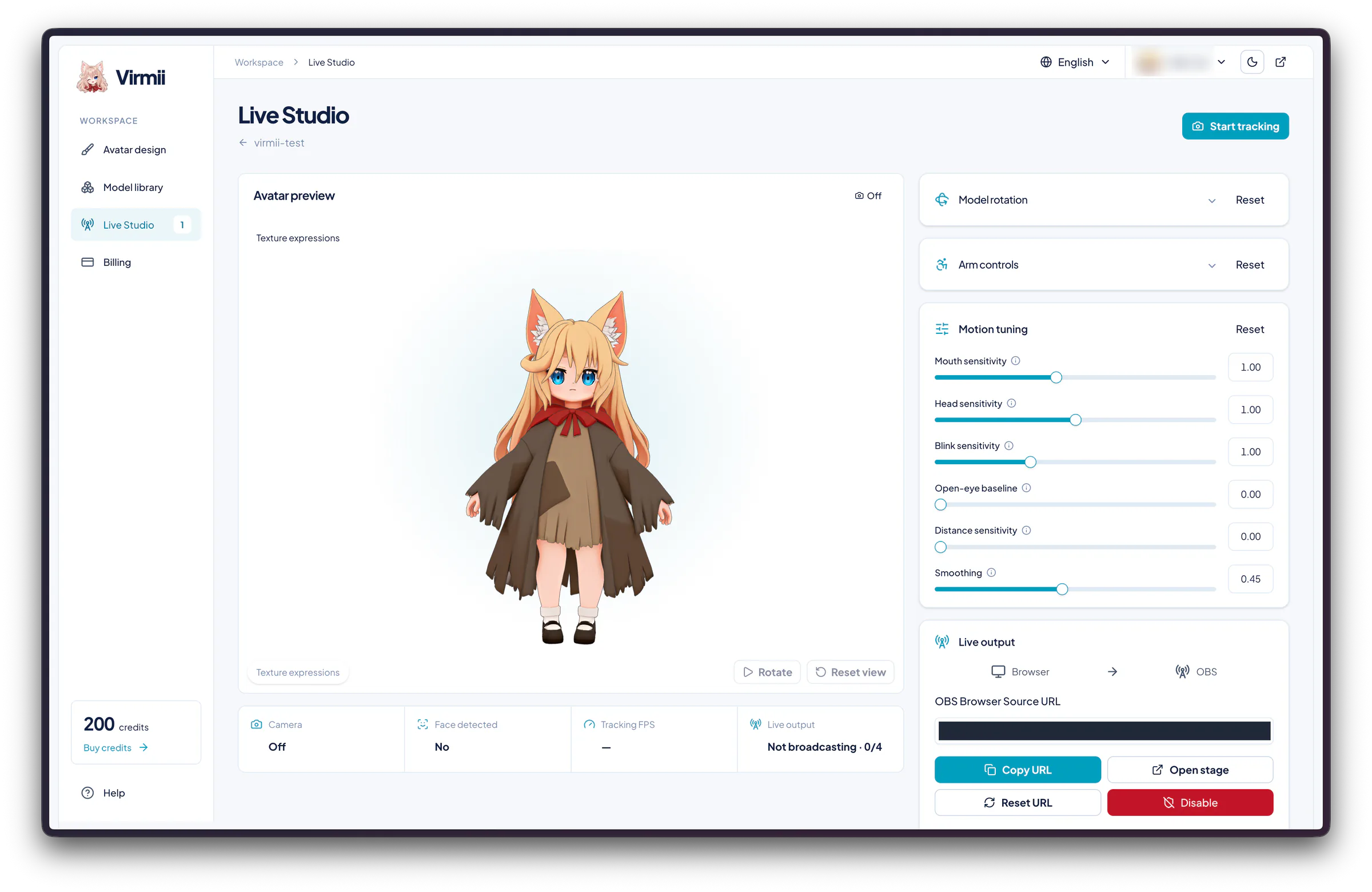
Creating the URL makes the stage link available; it does not start camera tracking or a public broadcast. The camera is still off in this screenshot. Keep your own URL private, just as it is redacted here.
- In OBS, open the Sources panel, select +, and choose Browser.
- Paste the private stage URL into the source's URL field.
- Use the stage's recommended viewport dimensions. Virmii's setup tutorial uses 1920 × 1080 as a starting point; that is not a guarantee of performance or a requirement that every output stream use the same resolution.
- Position and scale the source over the content you want to broadcast. Keep Live Studio open to send tracking updates.
- Add or select your microphone separately in OBS and check that it is not captured twice.
The official OBS Browser Source documentation explains viewport size, frame rate, and source lifecycle settings. Its default custom CSS already makes the page body transparent. Repeatedly pasting transparency CSS is not a performance optimization and cannot remove an opaque background drawn inside a renderer.
A transparent Virmii stage does not need a chroma-key filter just to remove its background. Check the result over your actual scene. If it appears opaque, inspect the source and stage settings before adding filters that may remove colors from the avatar.
Source settings that unload or refresh the page can affect the connection when you switch scenes. Test the exact settings you intend to use and confirm that motion resumes after returning to the avatar scene.
OBS has different sources for images, application windows, displays, cameras, and audio. Refer to the OBS Sources Guide when choosing how to capture the rest of your content. OBS Virtual Camera is not required to bring the Virmii stage into OBS; it serves a different purpose.
For the complete Virmii workflow, follow the image-to-avatar and OBS tutorial. If the avatar stops moving, first check that Live Studio is still open, tracking is active, and the private stage connection is working.
See the Virmii avatar in OBS
This 6.6-second clip from our hands-on comparison shows the Virmii avatar moving inside OBS, with the preview canvas, Sources, and Audio Mixer visible. The character's eyes, mouth, and head pose change while the performer's face stays out of the recording.
Use it as an example of the avatar output, then make your own recording to check framing, audio, and privacy across every scene you plan to use.
Make a test recording before going live
A private local recording is the best place to find a scene mistake. Use the same applications, avatar size, and OBS settings you plan to use during the stream.
- Speak at your normal volume. Listen for clipping, echo, duplicate microphone capture, and unexpected desktop audio.
- Turn your head, blink, speak, and pause. Check the expressions that your model actually supports and their return to neutral.
- Compare audible speech with the avatar's visible mouth response. If there is a noticeable offset, investigate the tracking and audio paths rather than expecting zero latency.
- Switch through every scene and return to the avatar. Look for accidental camera previews, private URLs, notifications, or personal information.
- Check the avatar's edges and framing against bright and dark content. Confirm that it does not cover essential information.
- Watch OBS performance statistics while recording. If rendering or encoding struggles, reduce competing workload or test a less demanding avatar and output configuration.
- Test the standby scene and what happens when tracking stops. Make sure the fallback reveals only what you intend to share.
A local recording can expose visual, audio, and encoding problems, but it does not prove that your network can sustain a live stream. Test delivery separately using your streaming platform's available test or visibility options.
Once the recording looks and sounds right, use the stream setup checklist to review the rest of your first broadcast. You do not need to call yourself a VTuber to present through a character; the setup only needs to fit your content and privacy preferences.
Frequently asked questions
Do I need a camera to stream with a virtual avatar?
No. A static image or a basic microphone-reactive PNGTuber can work without a camera. Virmii's live face-tracking workflow uses a camera locally to follow supported head and facial movements. Using that camera for tracking does not require adding its video to OBS.
Can I do this on a low-end PC?
Possibly, but test the full workload. A static image or simple reactive PNG setup may be a better starting point than a demanding 3D scene. Browser-based tracking and rendering still use CPU and GPU resources, and OBS needs resources to compose and encode your output. No fixed utilization percentage applies to every computer.
What is the difference between a static avatar, a PNGTuber, and a VTuber?
A static avatar is an unchanging image. A basic PNGTuber switches between image states, often using microphone levels. VTuber is a broader term for a creator presenting through a virtual character, not a file format or a requirement to use a webcam. Live2D and 3D models are other possible approaches.
Does Virmii use my microphone to animate the mouth?
Not in this camera-tracking workflow. Mouth movement comes from camera-derived tracking values and the available expression setup. Configure your microphone as audio in OBS; changing its gain does not change Virmii's camera-based mouth response.
Does local face tracking guarantee that my identity stays private?
No. Virmii's tracking pipeline processes raw camera video locally and sends movement values to the stage, but your OBS sources and other shared content still matter. A captured camera preview, an account name, a notification, or your voice can reveal information. Review all scenes and test a safe fallback before broadcasting.
Are Virmii's AI expressions stored inside downloaded VRM files?
No. The separately generated artwork plays in Virmii previews, Live Studio, and its OBS stage. It is not embedded in the downloaded VRM as facial shape keys. Other applications use the supported expression data present in that file, so test the export in the intended app.