Tutorials
VTuber Face Tracking: Webcam Setup & Fixes
Set up VTuber face tracking with a webcam, calibrate head movement, tune blinking and mouth response, and troubleshoot camera, avatar expression, and OBS issues.
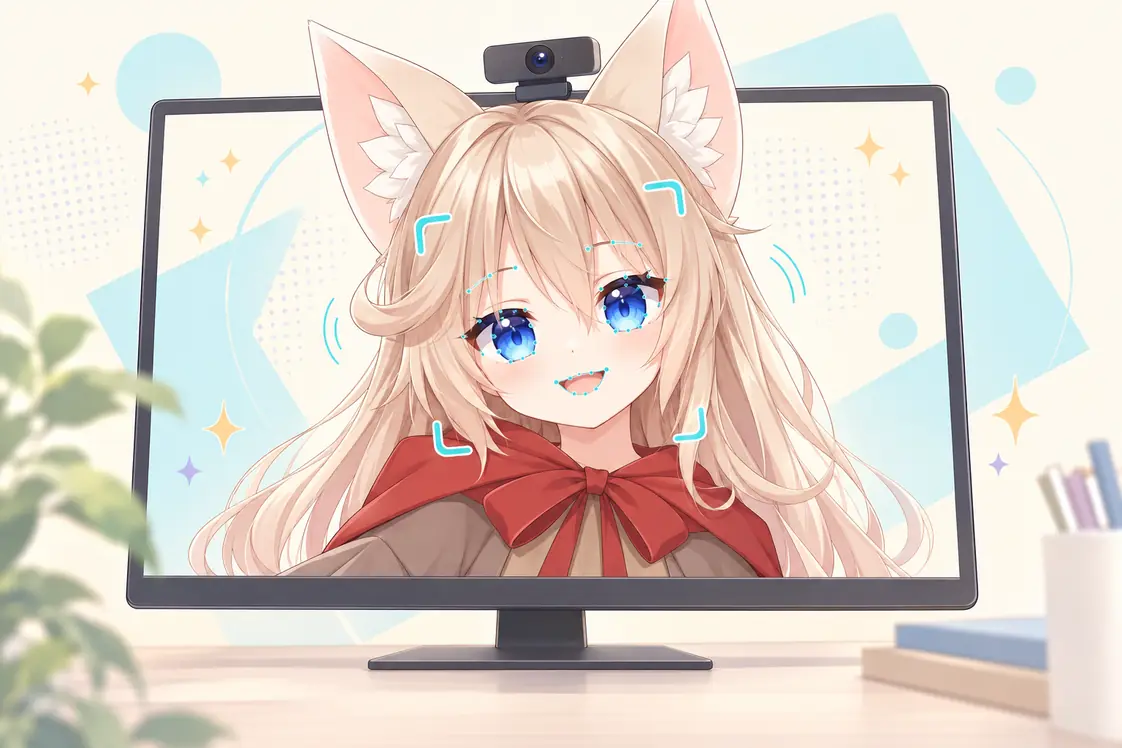
Start with the camera, then the avatar, then OBS
Webcam VTuber face tracking turns visible facial movement into signals that an avatar application can use. Getting a good result depends on both sides of that connection: the camera must see your face clearly, and the model needs a way to display the movements being detected.
If your avatar turns its head but does not blink, buying a better webcam may not solve the problem. First check whether facial input is being detected and whether the avatar has usable expressions. If the avatar works in Virmii but not OBS, check the live-stage connection before changing the model.
This guide covers camera placement, Virmii's actual calibration and sensitivity controls, and a practical troubleshooting order. Product behavior was checked against Virmii's implementation on September 26, 2026.
How webcam face tracking works in Virmii
A webcam supplies video frames. Face-tracking software estimates facial landmarks, head orientation, and expression strengths from those frames; the avatar renderer then turns those estimates into visible movement. These are estimates from an image, not a direct measurement of every facial muscle or a depth scan.
Virmii uses MediaPipe Face Landmarker, which can return facial landmarks, expression scores, and transformation matrices. The official Face Landmarker documentation describes those outputs. Virmii maps the supported signals to its avatar renderer; it does not expose every possible MediaPipe output as an avatar control.
flowchart TD
    A["Webcam frames"] --> B["Face tracking on your device"]
    B --> C["Head movement and facial signals"]
    C --> D["Virmii Live Studio preview"]
    C -->|"Movement data and tuning settings"| E["Private live-stage renderer"]
    E --> F["OBS Browser Source"]
    G["Microphone audio"] --> H["OBS audio setup"]
The live stage renders the avatar separately using movement data sent from Live Studio. It is not receiving a video stream of your webcam or a screen recording of the preview. Keep Live Studio open while streaming.
Virmii's tracker requests camera video, not microphone audio. Mouth movement follows camera-derived facial signals; it is not a microphone-based phoneme recognizer. Some other applications offer audio-driven lip sync or expression hotkeys, but those are separate features, not inputs to Virmii's current webcam tracking flow. Configure your spoken audio in OBS.
Head rotation and facial expression playback can succeed or fail separately. A moving head shows that some tracking and rendering are working; it does not prove that the model can blink, smile, or open its mouth.
Check the camera, browser, and avatar first
Use a working webcam in a supported desktop browser, with camera access allowed in both the operating system and the browser's site permissions. On the hosted site, open Virmii over HTTPS. Browser camera access requires a secure context and user permission, as explained in MDN's camera-access documentation.
Virmii currently requests a preferred resolution of 1280 × 720 and a preferred and maximum capture rate of 30 FPS. The browser and camera determine the actual resolution and frame delivery. This is a capture configuration, not a guarantee of tracking performance. A 60 FPS webcam does not make this workflow run at 60 FPS, and increasing OBS's frame rate does not increase the number of camera measurements.
Start with the camera you already have. If it does not open, check the privacy shutter, connection, and selected camera in the browser. Close other applications that may be holding the device, then retry. You can test the camera in another camera application, but close that application before returning to Virmii.
The avatar format must also match the application. Virmii works with supported generated 3D avatars and compatible custom VRM uploads; it is not a Live2D tracker. For uploaded files, check the VRM version and existing expression setup. The VRM file guide explains what the file contains, while the VTuber software guide compares the tools used for different avatar formats.
Set up framing and lighting before adjusting sensitivity
Place the webcam near eye level and face it from your normal streaming position. Keep your whole face visible, including your chin and eyebrows, with enough room to turn slightly without leaving the frame. Move the camera or chair until facial details are clear. There is no single distance or face-to-frame percentage that suits every lens and desk.
Use soft light from in front of you and avoid a bright window directly behind your chair. Check for deep shadows around the eyes and mouth. If glasses reflect the screen or lamp, change the light or camera angle and test again.
Watch what happens when you speak, blink, and turn toward your other monitor. A setup that works only while you stare straight into the lens may not fit your stream. Keep hair and other objects from covering the features you want to track.
If the camera's own software offers exposure controls, adjust them cautiously. A steady, well-lit image is the goal; locking an unsuitable exposure can make the feed worse. Virmii's Motion tuning controls do not change your webcam's exposure, gain, or white balance.
Start tracking and set your forward pose
For an avatar that is ready to use:
- Open its Live Studio page. In Live output, create a private OBS URL if one does not exist. The current interface requires this before enabling the camera; you do not have to open OBS yet.
- Select Start tracking and allow camera access. Wait for the camera status to become active and Face detected to show Yes.
- Sit in your usual position, with a relaxed face and your head pointing in the direction you want to treat as forward.
- Select Set forward pose. This uses the current head angle as the avatar's forward-facing reference and resets the relative-distance reference.
- Turn left and right, nod, and return to that position. Check head movement before tuning blinking and mouth response.
Set the forward pose again after moving the camera or changing your seating position. This is a session calibration, not a saved facial-expression profile. It does not automatically subtract your resting blink or mouth expression, repair a model, or calibrate shoulder and body tracking.
Stopping the camera clears the session's reference. After restarting tracking or reloading the page, set the forward pose again. Saved Motion tuning settings are separate from this reference.
Tune blinking, mouth movement, and smoothing
Change one control at a time and test with normal movements. Exaggerated expressions can be useful as a range check, but ordinary speech and natural blinks should be the main test.
| Live Studio control | What it changes | How to test it |
|---|---|---|
| Mouth sensitivity | The response to detected mouth movement | Lower it if a small opening produces an oversized mouth; raise it gradually if normal speech barely registers |
| Head sensitivity | How strongly the avatar follows head rotation | Turn toward your usual screens and check that the movement is comfortable |
| Blink sensitivity | How readily detected eye closure produces a blink | Raise it gradually if deliberate blinks or winks do not close the avatar's eyes |
| Open-eye baseline | How much of the resting eye-closure signal is ignored | Raise it cautiously if the avatar's eyes stay partly closed while yours are naturally open, then recheck full blinks |
| Distance sensitivity | How much the avatar changes apparent size as you move closer or farther away | Leave it low or at zero for a steadier size; it is not body-position tracking |
| Smoothing | How gradually tracked movement changes are applied | Increase it for jitter, then reduce it if head or mouth movement feels too delayed |
Blink sensitivity and the open-eye baseline work together. Too much baseline correction can stop a subtle blink from registering. Too much sensitivity can make small fluctuations trigger eye closure. Correct poor lighting before trying to compensate with either slider.
For the mouth, first check whether it moves at all. Sensitivity can adjust an existing response, but it cannot create a missing expression. The exact result also depends on whether the avatar uses VRM expression bindings or Virmii's generated expression artwork.
More smoothing is not always better. It trades responsiveness for steadier movement and does not fix a camera that repeatedly loses your face. Generated expression artwork also has its own discrete blink and mouth-pose transitions; smoothing does not turn those images into continuous mesh deformation.
Live Studio automatically saves Motion tuning changes after a short delay when a private live URL exists. Watch for save errors and allow the change to finish before closing the page. There is no separate calibration JSON to paste or a manual save-profile step for Set forward pose.
Uploaded VRMs and Virmii-generated models use different expression paths
Uploaded VRMs use the expressions already in the file
Uploading a custom VRM does not add missing blinks, mouth shapes, or facial geometry. Its existing expression bindings determine what the renderer can animate. VRM versions use different preset names, so do not copy a generic mapping snippet into a file and assume it repairs the model.
If the head moves but the face stays still, inspect the expressions in a compatible VRM editor. Where the editor supports individual expression tests, check whether the expected preset actually changes the face. A working deformation with an incorrect binding is a different problem from a missing or empty shape key.
Uploaded VRMs are not currently eligible for Virmii's AI expression-generation workflow. Model-side repairs must be made with an appropriate authoring tool and permission to modify the asset. See why facial expressions need more than a tracking connection for the distinction.
Generated models can use separately generated expression artwork
For a model generated in Virmii from text or an image, open the completed model and use Generate expressions. This is a separate setup step, not a guarantee that every newly generated or downloaded VRM already contains a complete facial rig.
The current workflow prepares 13 expression images, including intermediate blink and smaller mouth poses. Once the set is ready, Virmii projects the artwork onto the face and selects poses from camera input while the 3D avatar continues to move. Check the task's completion state before troubleshooting sensitivity. A pending or failed expression task is not a webcam-calibration problem.
Generation runs in the background and may take up to about 24 hours. If a task fails and the model still has retries available, retrying keeps completed images and requests missing or failed ones; successful images are fixed for that model version. A completed task still needs visual inspection, especially around strong head turns or unusual facial geometry. The AI expression generation guide covers the steps, and pricing lists the applicable credits and allowances.
The artwork plays in Virmii's preview, Live Studio, and OBS stage. It is stored separately from the VRM: downloading the model does not embed this playback system or create facial shape keys for another application. For the implementation details, read how we implemented expression binding.
Troubleshoot in order: input, expression playback, output
Start with the earliest part of the process that is failing. Live Studio shows camera status, face detection, Tracking FPS, and live-output connection status. Those are useful checks, but they are not a per-expression signal debugger, and Tracking FPS is not the same as end-to-end broadcast latency.
| Symptom | What to check first | Next action |
|---|---|---|
| Camera will not start | Site and OS permissions, privacy shutter, device connection, and competing camera apps | Resolve the input issue, then restart tracking; if initialization times out, also check the network connection needed to load tracking resources |
| Camera is active but no face is detected | Framing, shadows, reflections, and covered features | Face the camera in even light and confirm detection before calibrating |
| Head stays tilted at rest | Whether the forward pose was set in your current seated position | Set forward pose again; if the model is tilted even without tracking, inspect the model separately |
| Eyes remain half-closed or flicker | Lighting, open-eye baseline, blink sensitivity, and the model's blink result | Adjust the baseline and sensitivity in small steps, then test natural blinks and reopening |
| Mouth opens too far during quiet speech | Mouth sensitivity and the avatar's available mouth shapes | Reduce sensitivity and test ordinary speech, pauses, and returning to a closed mouth |
| Head moves but the face does not | Which expression path the avatar uses | For an uploaded VRM, inspect its bindings; for a generated model, check that expression generation completed and the artwork loaded |
| Motion stutters or feels delayed | Face detection, Tracking FPS, other local workloads, and smoothing | Improve lighting, close unnecessary camera-heavy or graphics-heavy tasks, and retest; do not assume a 60 FPS capture setting is available |
| Preview works but OBS does not move | Private stage URL, active Live Studio, and live-output connection status | Keep tracking active, verify that OBS uses the current URL for the same avatar, and check Browser Source reload behavior |
If facial tracking is active but the appearance is wrong, test the model separately rather than continuing to adjust the camera. Missing shapes, poorly aligned expression artwork, and an incorrect blink pose require different fixes.
Connect the working avatar to OBS
Once the preview behaves correctly, copy the private URL from Live output into an OBS Browser Source. Use the avatar's stage URL, not the Live Studio page or model-detail address. The stage renders the avatar on a transparent background, while Live Studio supplies movement data and current tuning settings over the live connection.
Keep Live Studio running, and verify that its live-output status shows a connection. Set up microphone audio separately in OBS. If you use display or window capture for other content, check that it does not accidentally reveal your camera test, account pages, or private stage URL.
OBS can unload a Browser Source when it is hidden or refresh it when a scene becomes active. Either behavior can require the stage to reconnect. Check these options if tracking stops after a scene change; the OBS Browser Source documentation explains them. A frozen OBS stage is not, by itself, evidence that calibration was lost.
Record a short test with speech, blinks, head turns, and a scene change. Review the recording for noticeable audio-video offset rather than expecting zero delay. For the full connection walkthrough, follow the Virmii avatar and OBS tutorial.
Treat the stage URL as private. Reset or disable it if exposed, and update OBS when you replace it.
A short check before every stream
- Check lighting and framing from your normal seat, including the direction you look while playing or reading chat.
- Start tracking, confirm face detection, and set your forward pose for the current session.
- Test natural blinks, normal speech, and returning to rest. For generated avatars, confirm that the expression artwork is ready.
- Check the OBS connection and make a short recording with your microphone. Listen and watch for an obvious offset.
- Keep Live Studio open, and test your actual scene switches before going live.
For longer streams, notice whether changing daylight, posture, or computer load affects the result. Recheck framing or recalibrate when your position changes. Initial setup cannot guarantee stable tracking for an entire broadcast. The VTuber setup checklist covers the rest of the recording and streaming preparation.
Frequently asked questions
Why does my head move but my mouth and eyes do not?
Head rotation and facial playback have different requirements. Check face detection and visibility first, then the avatar's expression path. An uploaded VRM needs working bindings in its file; a Virmii-generated model needs its separate expression task to finish before the artwork can play. Head movement alone does not confirm either of those conditions.
Why do my avatar's eyes stay half-closed or keep twitching?
Start with lighting and reflections around your real eyes. Then adjust Open-eye baseline while looking naturally at the camera, and test Blink sensitivity with deliberate blinks. Keep checking that the eyes both close and reopen. If the same bad pose appears when testing the model's expression independently, changing tracking sensitivity will not repair that pose.
Will uploading a custom VRM add missing facial expressions?
No. Uploading uses the expressions already in the file and does not make that model eligible for Virmii's generated-expression artwork. Missing facial shapes or bindings need to be authored or repaired separately. A successful upload or head-tracking test is not a complete expression check.
Why do settings seem to reset when I open OBS?
Separate Motion tuning from Set forward pose. Motion tuning changes are saved automatically when the live URL exists, subject to a successful save. The forward pose is a local tracking-session reference and must be set again after stopping or restarting that session. Opening OBS should use movement data from the still-running studio; first check that the source points to the same avatar's current private URL and that it has connected.
Do I need a microphone for Virmii mouth tracking?
No. The current tracker uses camera input for mouth movement and does not capture microphone audio. You still need an audio source in OBS if you want viewers to hear you. Speaking into a microphone without the camera seeing your mouth will not drive Virmii's facial tracking.