Tutorials
Best VTuber Software: Choose Tools for Models, Tracking, and OBS
Choose VTuber software for PNGTuber, Live2D, and VRM workflows. Compare model creation, tracking, Windows and Mac compatibility, costs, and OBS setup.
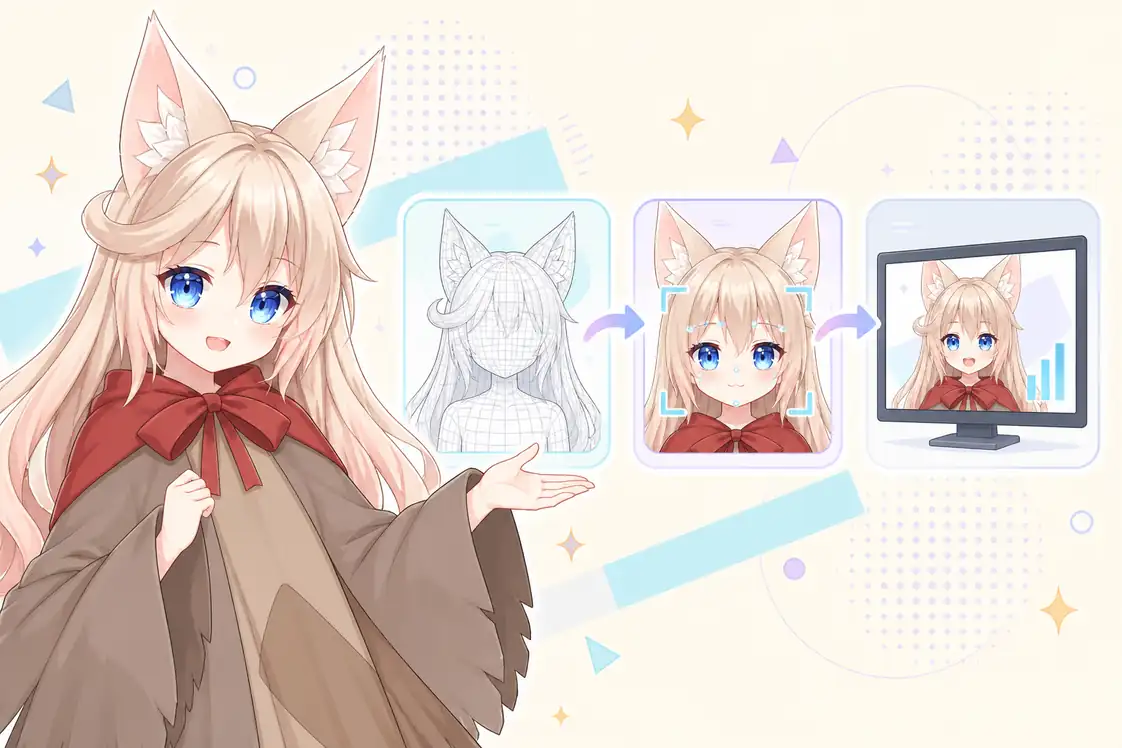
Choose your VTuber software by avatar format
The best VTuber software depends on the avatar you have, the computer you use, and the kind of stream you want to make. Start with those constraints before choosing tracking features or buying extra equipment.
This guide is a workflow comparison, not a performance ranking. It combines official product documentation with Virmii's current implementation; it does not claim benchmark results or a universal winner. Product details were checked on September 12, 2026.
| Your starting point | Model preparation | Tracking or animation | Broadcast step |
|---|---|---|---|
| A few character images | Prepare silent and speaking states | A reactive-image application | Capture its supported output in OBS |
| Layered 2D artwork | Rig it in Live2D Cubism, or commission a rig | VTube Studio | Use an output method supported on your OS |
| A customizable 3D character | Create and export from VRoid Studio | A tracker that accepts the exported VRM version | Add the tracker's output to OBS |
| A compatible VRM already on disk | Check its version, expressions, and file size | VSeeFace on Windows, or Virmii's browser workflow | Desktop capture or Virmii's private Browser Source |
| One character reference image | Generate a 3D model with Virmii's paid credits, then inspect it | Virmii Tracking Studio | Virmii's private Browser Source |
A reactive-image setup still needs artwork and configuration; having no rigged model does not mean having no assets to prepare. If you are unsure which format fits, start with the PNGTuber, Live2D, and VRM comparison.
Understand the three jobs: creation, tracking, and broadcasting
Model creation determines the character's appearance and what can move. Tracking turns camera input, microphone levels, or manual controls into movement. Broadcasting combines the avatar with your content and audio, then records or streams the result.
Prepare the avatar → animate it in a compatible application → compose and test the stream.
These jobs can be handled by separate tools or combined in a service. More applications do not automatically improve stability, and fewer installations do not automatically reduce CPU or GPU use. What matters is whether the files and outputs connect correctly and run well together on your computer.
For example, a PSD is artwork, not a finished tracking model. A Live2D runtime delivery includes the exported model and its supporting files. A VRM file describes a 3D avatar, but its expressions and version still need to match the receiving application. Neither format guarantees that every facial movement will work without checking the rig.
Software for creating a VTuber model
VRoid Studio: a starting point for customizable 3D characters
VRoid Studio is free character-creation software with Windows and macOS versions. It provides presets and controls for appearance, hair, clothing, and textures, and exports VRM models. It is a useful starting point when its character system fits your design and you want to work on the model yourself.
Keep your editable project as well as the exported avatar. An export is the file you test in a tracker; it is not a substitute for the source project when you later change the design. Check the permitted uses of any textures or clothing you import from other creators.
Live2D Cubism: rigging layered illustrations
Live2D Cubism is for building movement into prepared 2D artwork. Layer separation, mesh deformation, parameters, expressions, and physics require authoring work. Buying or downloading the editor does not turn a flat illustration into a finished model automatically.
Cubism offers FREE and PRO editions with different limits. Review the official feature comparison against the model you intend to make. If you already have a finished Live2D model, you may only need a playback and tracking application rather than the authoring editor.
Custom 3D modeling and commissioned work
Custom geometry, outfits, and facial shapes can require a broader 3D authoring workflow. Before choosing one, decide who will handle modeling, rigging, expressions, and export. Confirm that the final delivery includes a file your tracker accepts; a generic 3D asset is not automatically a ready-to-track VRM.
The VTuber model creation guide compares manual creation, commissioning, and image-based generation. For design handoffs, use the character reference-sheet guide.
VTube Studio for Live2D tracking
VTube Studio animates Live2D models and is available on PC/Mac through Steam, with mobile tracking options. Its features include webcam and supported phone tracking, hotkeys, props, and microphone lip sync.
Start by testing the camera you already own. A supported phone can be another input option, but the improvement depends on the device, lighting, model parameters, and calibration. More detailed tracking data cannot create movements that were never rigged into the artwork.
Use a neutral pose for calibration, then check head turns, blinks, gaze, and mouth movement. Test hotkeys separately so expressions return to their intended state. See the official documentation for device support and configuration.
Watermark removal and permission to use software commercially are different questions. Do not assume that a watermark-removal purchase covers business use. Review the VTube Studio license for the applicable terms and company-license requirements.
VSeeFace for a Windows VRM workflow
VSeeFace is a free Windows application for VRM avatar tracking and rendering. Its official documentation specifies VRM 0.x support, not VRM 1.0, so check the export version before troubleshooting an import failure. It does not support Live2D models.
It supports webcam face tracking, expression controls, and several output and tracking integrations. Optional hand tracking requires supported additional hardware. Its documented OBS options include Game Capture and Spout2.
VSeeFace is a Windows choice, not a native macOS recommendation. Its software terms allow commercial use, but the avatar and any third-party assets still have their own conditions. Use the official download source and check the current documentation before setting up additional tracking devices.
Virmii for image-to-VRM and browser tracking
Virmii combines 3D avatar generation, model storage, browser-based camera tracking, and a private live stage for OBS. It works with generated avatars and compatible custom VRM uploads. It does not create or track Live2D models or supply PNGTuber reaction states.
Start with an image or an existing VRM
For generation, use one clear PNG, JPEG, or WebP character image that you are authorized to process. The image must be no larger than 10 MB, at least 256 pixels on each side, and no more than 40 megapixels. Model generation uses paid credits and is asynchronous. Inspect the result: unseen surfaces are inferred, and the source image is not guaranteed to be reconstructed exactly.
For a custom model, upload one compatible VRM 0.x or VRM 1.0 file of up to 30 MB. Model-library limits also apply. Uploading does not automatically repair missing expressions or convert an arbitrary GLB into a usable avatar. Check current allowances and credit options on the pricing page.
Know what the tracker actually controls
Virmii uses the camera for head and supported facial tracking. It requests no microphone audio for tracking; your spoken audio belongs in the OBS audio setup. Camera frames are processed locally in the browser by default, while movement data is sent to the private live stage as needed.
Virmii supports AI expression generation for models created in Virmii. Open the completed model and select Generate expressions to create 13 images for blinking, smiling, and mouth movement, then test them with camera tracking. This artwork works in Virmii previews, Live Studio, and the OBS stage without requiring facial shape keys. Uploaded VRMs use their existing expression bindings; downloaded VRMs do not include the generated artwork. See the AI expression generation guide.
AI expression generation costs 20 credits per set without a subscription. Creator and Pro use included monthly generations first; additional sets cost 20 credits. The initial charge is kept if generation fails. Each model version allows up to 2 free retries for missing or failed images, without using more credits, included generations, or model retry attempts. See pricing for the current monthly allowances.
Virmii's current Tracking Studio does not accept external body trackers or provide hand and full-body pose tracking. Browser execution still consumes local resources, so test it alongside your game and OBS rather than assuming it preserves extra graphics headroom.
Connect through the private live-stage URL
Create a private live-stage URL in Virmii and add it to an OBS Browser Source. Use the URL generated for your avatar, not a generic account or tracking-page address. The stage renders with a transparent background, and Tracking Studio must remain open to send movement data over WebRTC.
Do not display that URL publicly. If exposed, reset or disable it. The Virmii avatar and OBS tutorial walks through the actual interface and connection checks.
Choose an OBS connection that matches your application
The right source depends on the application's supported output and your operating system. Start with its documented method, then inspect edges, cropping, and responsiveness in a recording.
| Output method | When to consider it | What to check |
|---|---|---|
| Game Capture | A compatible desktop application on Windows | Application support and the transparency setting |
| Browser Source | An application provides a dedicated web output, such as Virmii's live stage | Correct URL, viewport size, connection, and source lifecycle |
| Plugin-based output | Both sender and receiver document support for the same plugin or protocol | OS, plugin versions, alpha support, and setup requirements |
| Window capture or virtual camera | The application documents this as an output option | Whether transparency is preserved and whether unwanted UI appears |
OBS Game Capture is Windows-specific; it is not a universal instruction for Mac users. Browser Source has its own viewport width, height, and frame-rate settings. Its shutdown and refresh options can also affect whether a connected stage stays loaded when you change scenes.
Avoid claims that a capture method is zero-latency or always faster. Recording and encoding still take work, and plugins add their own compatibility requirements. A virtual camera also should not be assumed to preserve transparency in every receiving application.
Windows and Mac: check the entire workflow
Verify four things before committing to a setup: the authoring tool runs on your OS, the tracker accepts your exact model format, the input device is supported, and the output reaches your broadcast software.
On Windows, a desktop tracker may offer Game Capture or other Windows-specific integrations. On macOS, choose a natively supported application or test a compatible browser workflow. Running a Windows application through a compatibility layer adds another component to diagnose; do not make that the default plan for a first stream.
For Virmii, test camera permissions and tracking in a current desktop Chrome or Edge browser, then verify the separate OBS stage. A successful model preview does not prove that camera access, live transport, and OBS rendering all work together.
Compare total cost, not just the download price
| Cost area | Questions to answer before paying |
|---|---|
| Model or artwork | Do you need illustration, rigging, expressions, textures, or revisions? |
| Software edition | Which required features are free, one-time purchases, or subscriptions? |
| Service usage | Are generation credits, library limits, or ongoing plans involved? |
| Equipment | Can your current microphone, camera, and computer pass a recording test? |
| Usage rights | Do the software terms and asset permissions cover your intended use? |
A free application does not make custom artwork, extra devices, or online services free. A low-cost start may be possible with existing equipment and appropriately licensed free assets and tools. Virmii's paid model generation should not be included in a promise of a completely free setup.
Keep editable source files when the delivery includes them, and clarify whether later changes cost extra. The model commission cost guide explains how to compare deliverables and revision terms without relying on a single headline price.
Test your chosen stack before going live
- Import the actual model. Check textures, proportions, expression bindings, and any physics you intend to use.
- Test the input. Calibrate camera tracking or set the reactive-image audio threshold. Confirm that only supported movements are expected.
- Inspect the output. Check transparency, avatar boundaries, and whether application controls are visible in OBS.
- Record with the full workload. Run your intended game, alerts, tracker, and OBS together. Review the recording and OBS statistics.
- Check audio separately. Confirm microphone levels, duplicated audio, and visible mouth-to-voice timing. Change sync offsets only after observing a consistent mismatch.
- Prepare a fallback. Keep a static avatar or waiting scene ready, and confirm that private URLs and stream keys are hidden.
If the system struggles, reduce the scene complexity, model load, output resolution, or frame rate one change at a time. Test the live connection as well as a local recording; recording alone cannot establish whether your upload connection is stable. Use the VTuber setup checklist for the wider pre-stream review.
Frequently asked questions
What is the best VTuber software for a beginner?
Choose by your existing asset and intended output. A reactive-image application can suit a PNGTuber; a Live2D tracker suits a finished Live2D model; a compatible VRM tracker suits a 3D avatar. If you have only a reference image, model creation comes before tracking. The simplest useful stack is one you can configure and test with your current equipment.
Can I use the same model in every tracker?
No. Live2D and VRM are different formats, and even applications that both accept VRM may support different versions, expressions, materials, or extensions. Check the receiving application's requirements before exporting or commissioning a model.
Do I need an iPhone or full-body trackers?
Not for every workflow. A reactive-image avatar can work without a camera, and webcam tracking is enough for many head-and-face setups. Additional devices only help when your application supports them and your model can use the resulting data. They are not a requirement for starting with Virmii.
Is OBS mandatory?
No. You can use another broadcast application if it accepts your avatar application's output and supports the recording or streaming features you need. This guide uses OBS because it matches the linked Virmii setup tutorial. Test the whole connection if you choose a different compositor.
Will browser tracking be faster than a desktop application?
There is no general guarantee. Both use your computer's resources, and performance depends on the model, tracking workload, renderer, game, and encoding settings. Compare the complete scenes on your hardware rather than installation size or a tool's marketing label.