Tutorials
What Is a VRM File? Open and Use Your Avatar
Learn what a VRM file is, how to open your avatar, check compatibility and expressions, and prepare it for face tracking and streaming.
What is a VRM file?
A VRM file is a portable 3D humanoid avatar file based on glTF 2.0. It packages the character's geometry and textures with avatar-specific information, such as humanoid bone assignments and usage metadata. Depending on the model, it can also include facial expressions, eye movement settings, and secondary motion for hair or clothing.
The purpose is to let compatible applications understand the same avatar without rebuilding its setup from scratch. It is not a promise that every VRM works in every tracker or looks identical in every renderer. The file version, available expressions, and receiving application's support still matter. The official VRM introduction explains the format's role in sharing humanoid avatars between applications.
For streaming, think of the process as three separate jobs: the VRM describes the avatar, a tracking application animates it, and OBS combines the rendered output with your content and audio. The file alone does not capture your face or broadcast a stream.
If you have not made a model yet, start with the VTuber model creation guide.
VRM, GLB, and editable source projects
VRM uses a binary glTF container with additional avatar specifications. A general-purpose GLB can contain a 3D character, but it does not necessarily contain the humanoid mapping or expression setup a VTuber application expects.
| File or project | What it is for | What not to assume |
|---|---|---|
.vrm | Delivering a humanoid avatar to compatible applications | Every expression, material, or tracking feature is supported everywhere |
.glb | Delivering a general-purpose 3D asset | A character-shaped mesh is already a configured VRM avatar |
An editable source project, such as .blend | Continuing the original modeling and rigging work | The exported avatar preserves every modifier, construction step, and project setting |
The VRM 1.0 core specification defines the avatar information added to glTF, including humanoid and metadata fields. Expressions and other features have their own requirements; they are not automatically created by giving a file a .vrm extension.
Renaming a .vrm file to .glb changes its filename, not its contents. Some generic importers may load the geometry and textures while ignoring unsupported avatar extensions. Renaming alone does not delete metadata, but importing and re-exporting through a tool that does not preserve those extensions can lose it. Renaming a generic GLB to VRM does not convert it into a valid avatar either.
Keep an untouched VRM export and the source project when available. For an actual conversion workflow, see how to prepare a GLB model for VRM use.
How to open a VRM file
Choose software that explicitly supports VRM, rather than relying on whether a generic 3D viewer happens to display the mesh. A viewer, an editor, and a tracker do different jobs: viewing the character successfully does not prove that its facial expressions or live tracking will work.
- Keep the original file. Work with a copy if you plan to edit or convert it.
- Check the creator's terms. Confirm that you may use the avatar for your intended purpose, including uploading it to a service if that is part of your workflow.
- Check the VRM version. Use the export settings, delivery notes, or a VRM-aware inspector to identify it, then check the receiving application's support.
- Import and inspect the character. Rotate the view and look for missing surfaces, incorrect transparency, unusual proportions, and obvious texture problems.
- Test movement separately. Try the supported head and facial controls before setting up your stream.
Virmii can preview compatible custom VRM uploads and use them in its browser-based Tracking Studio. This is an account-based model-library workflow, not a local-file viewer that keeps the uploaded asset only on your device.
OBS is the broadcast step, not the VRM importer in this workflow. You add the avatar application's output to OBS; you do not add the raw .vrm as a Media Source. Virmii provides a dedicated live-stage URL for an OBS Browser Source.
VRM 0.x and VRM 1.0: check before converting
VRM 0.x and VRM 1.0 are different specifications, and applications do not necessarily accept both. VRM 1.0 reorganizes avatar data and updates areas including expressions, MToon materials, spring bones, and node constraints. Its coordinate convention also differs from VRM 0.x. See the official list of changes for the technical differences.
A newer export is not automatically the right export for an older tracker. Before converting, check what your destination accepts. Keep the original and test the converted copy's appearance and movement; conversion should not be treated as a guaranteed repair for an unrelated rig or material problem.
Virmii's current viewer supports compatible VRM 0.x and VRM 1.0 models. That does not guarantee that every custom extension or unusual export will behave as its creator intended. Product behavior described here was checked against Virmii's implementation on September 18, 2026.
Check the model before testing your camera
Shape, rig, and pose
Inspect the face, hands, clothing, and back of the model. Then watch what happens when the head turns. Distortion can involve bone assignments, skin weights, rest poses, or export settings; a twisted mesh does not identify one specific cause by itself.
A preview is useful for spotting symptoms. Repairing the underlying mesh, rig, or bone mapping requires an appropriate authoring tool and permission to modify the asset. Virmii's preview is not a rig editor or a full specification validator.
Materials and performance
Check hair transparency, outlines, skin shading, and any surfaces that become invisible at certain angles. Compare the same file in another compatible viewer before deciding whether the problem belongs to the asset or the renderer.
Also test with the applications you will actually run during a stream. A small download does not necessarily mean low rendering cost: geometry, materials, texture memory, and the rest of your scene all matter. Avoid changing the model solely to reach an arbitrary file-size target if it already meets the upload limit and runs well in your intended setup.
Test expressions, blinking, and mouth movement
An avatar needs both working expression definitions and an application that drives them. The model describes what changes; camera tracking, audio analysis, or manual controls provide input, depending on the application.
Names differ between VRM versions. This table shows common VRM 0.x editor labels alongside VRM 1.0 preset names; individual interfaces may use different capitalization.
| Purpose | VRM 0.x labels | VRM 1.0 presets |
|---|---|---|
| Happy, angry, sad, relaxed | Joy, Angry, Sorrow, Fun | happy, angry, sad, relaxed |
| Mouth shapes | A, I, U, E, O | aa, ih, ou, ee, oh |
| Both eyes blinking | Blink | blink |
| Left and right blinks | Blink_L, Blink_R | blinkLeft, blinkRight |
The VRM 0.x blendshape documentation and VRM 1.0 expression specification describe these controls. VRM 1.0 expressions can bind morph targets, material colors, and texture transforms. Its preset expressions are optional, so the format does not guarantee that every avatar has every mouth shape or emotion.
Start with a neutral face, then try head turns, blinks, and opening and closing your mouth. Check that the avatar returns to neutral. If your editor offers individual expression controls, test those separately from live tracking. A stationary mouth could mean missing bindings, but it could also mean inactive input, incompatible mappings, or expression overrides.
Virmii uses camera input for facial movement and does not request microphone audio for tracking. For models created in Virmii, follow the AI expression generation guide to add blinking, a smile, and mouth shapes. Uploaded VRMs use the facial bindings in their files; repair missing bindings in a compatible editor, then export and test again. Generated expression artwork plays inside Virmii and is not embedded in downloaded VRMs.
AI expression generation costs 20 credits per set without a subscription. Creator and Pro use included monthly generations first; additional sets cost 20 credits. The initial charge is kept if generation fails. Each model version allows up to 2 free retries for missing or failed images, without using more credits, included generations, or model retry attempts. See pricing for the current monthly allowances.
Check the avatar's license and usage permissions
VRM can carry creator and usage information in its extension metadata. This is not simply a license note in the binary file header. The available fields depend on the version; the VRM 1.0 metadata specification includes settings for avatar use, commercial use, attribution, modification, and redistribution.
Read the supplied license and the creator's accompanying terms, not just the download price. Check whether they cover your planned monetized streams, edits, and sharing of the model file. If the metadata and delivery terms are unclear or appear to conflict, ask the creator before proceeding. A free download is not evidence of unrestricted permission.
Virmii's current File details panel shows storage information such as the filename, size, and upload dates. It is not a complete embedded-license inspector. Use a VRM-aware tool or the creator's documentation to review permissions; uploading successfully does not establish that you have the right to use the asset.
Use your VRM with Virmii and OBS
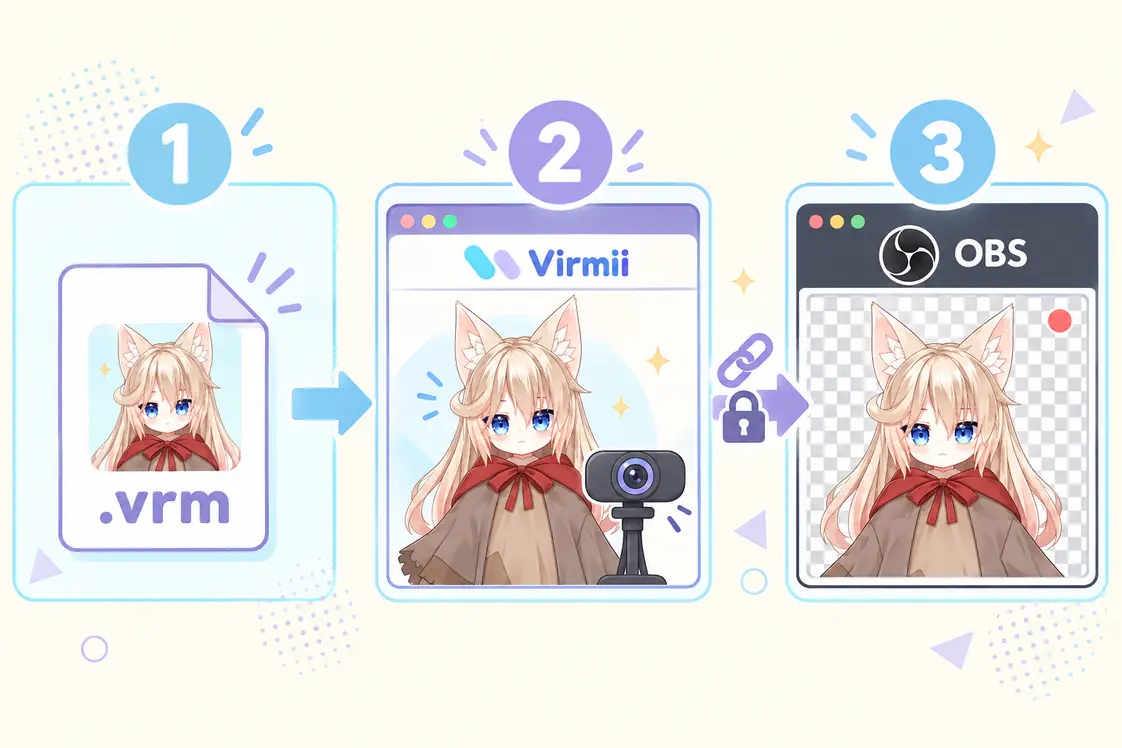
Workflow illustration, not product screenshots: 1. upload a compatible VRM; 2. preview and track it in Virmii; 3. display the private live stage in OBS. Keep Tracking Studio open and configure microphone audio separately in OBS.
For an existing avatar, the current workflow is:
- Upload your model. Sign in and add a compatible
.vrmfile to your private model library. The current per-file limit is 30 MB, and model-library allowances also apply. Check pricing for your account's options. - Inspect the preview. Rotate and zoom the character to check its appearance. Uploading does not repair missing expressions or provide material-editing controls.
- Open Tracking Studio. Allow camera access, start tracking, and calibrate while facing the camera in a neutral pose. Test head turns, blinking, and mouth movement where the model supports them.
- Create the private live-stage URL. Copy the URL generated for this avatar into an OBS Browser Source. The stage renders the avatar against a transparent background; an ordinary model-detail page is not the same output.
- Keep Tracking Studio open and record a test. It supplies movement data to the live stage. Set up your microphone and other audio separately in OBS, then check responsiveness, cropping, transparency, and sound together.
Virmii currently provides camera-based head and supported facial tracking, not hand or full-body tracking or an iFacialMocap input connection. Camera frames are processed locally in the browser by default, while movement data is sent to the connected live stage. That is separate from storing the uploaded model in your account.
Treat the live-stage URL as private. Do not show it on stream or post it publicly; reset or disable it if exposed. For the interface walkthrough, use the Virmii avatar, tracking, and OBS tutorial.
If you are starting from an image rather than an existing VRM, Virmii also offers paid image-to-3D generation. That is a separate creation step, and the resulting avatar still needs inspection and a tracking test.
Troubleshoot common VRM problems
Change one thing at a time and keep the original export. These symptoms have several possible causes, so use the checks to narrow the problem rather than treating them as automatic diagnoses.
| Symptom | Possible causes | First checks |
|---|---|---|
| The file will not load | Unsupported VRM version, incomplete download, invalid export, or an application limit | Confirm the version, file size, and download; try the unchanged file in another compatible viewer |
| Pink, black, or missing surfaces | Material or shader support, missing textures, lighting, or transparency settings | Compare renderers and inspect the export's materials; there is no universal shader replacement that preserves every appearance |
| Twisted geometry or detached-looking limbs | Bone mapping, skin weights, rest pose, or export problems | Inspect the rig in its authoring tool before changing tracking settings |
| The head moves but eyes or mouth do not | Missing bindings, unsupported mappings, tracking settings, or expression overrides | Test expressions independently where supported, then check camera input and calibration |
| The avatar moves in Virmii but not OBS | Wrong stage URL, inactive Tracking Studio, or a disconnected Browser Source | Keep the studio tracking, verify the private URL, and check the source's connection and lifecycle settings |
A successful test in one viewer is useful evidence, not certification that the file works in every runtime.
Frequently asked questions
Can I edit a VRM in Blender or Unity?
With a compatible VRM importer, you can bring an exported avatar into an authoring environment and edit the data the importer supports. Do not expect this to recreate the original source project, including its construction history and tool-specific settings. Keep the source when available, check modification permission, and test a fresh export after editing. Virmii is not a substitute for those editing tools.
Can I just rename .vrm to .glb?
Some generic tools may then accept the container, but renaming is not a conversion or a compatibility fix. It leaves the file's data unchanged. A tool that ignores VRM extensions may display only part of the intended avatar behavior, and a later re-export may discard information it does not understand.
Why is my avatar pink or black?
The color alone is not enough to identify the fault. Check the application's material support, textures, lighting, and error messages, then compare the original file in another VRM-capable viewer. Replacing a shader can change the intended look and is not a guaranteed fix.
Can I use a free VRM for monetized streaming?
Only if the applicable permissions cover that use. Review the model's license, creator terms, attribution requirements, and any restrictions on included third-party assets. The price of the download and its ability to load in a tracker do not answer the permission question.
Once the file and tracking work, use the VTuber setup checklist to prepare your first recording. If you still need to choose the tools around your model, see the VTuber software guide.