How to Stream as a 3D VTuber on Mac (M1/M2/M3/M4): Native Setup Guide
Learn how to stream as a 3D VTuber on an Apple Silicon Mac (M1/M2/M3/M4) without Wine or Parallels. Set up browser VRM tracking, a transparent OBS Browser Source, and Apple VideoToolbox encoding.
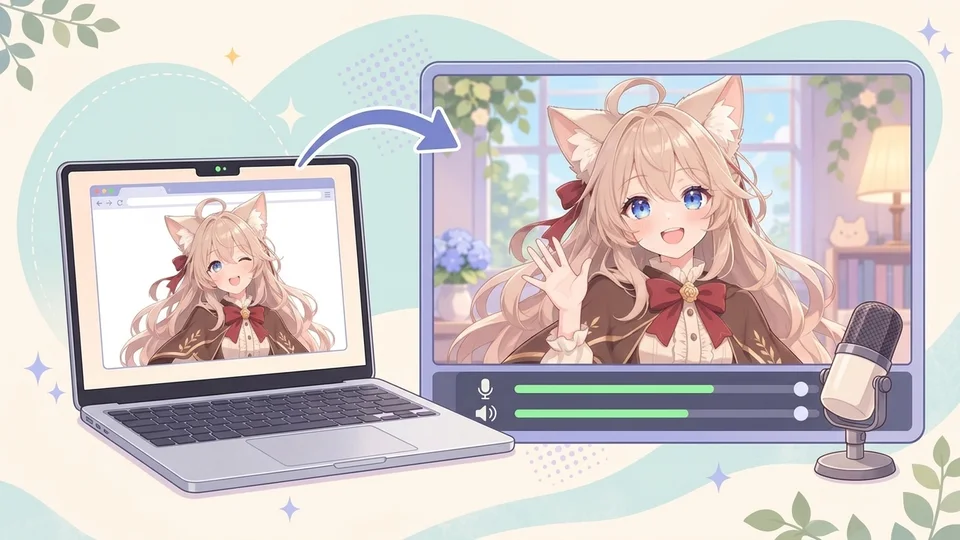
The 3D VTuber challenge on macOS Apple Silicon
Setting up a 3D VTuber workflow on a Mac powered by M1, M2, M3, or M4 Apple Silicon chips often hits an immediate compatibility wall because many mainstream avatar tools were built for Windows. Popular desktop trackers such as VSeeFace do not provide native macOS builds, leaving Mac creators searching for a practical alternative.
Common workarounds—such as running Windows virtual machines in Parallels or translation layers like Wine—add CPU, memory, and GPU overhead, which can cause thermal throttling and sluggish tracking during a live broadcast. On top of that, OBS Studio on macOS does not have Windows' DirectX Game Capture source, which often pushes creators toward window capture with green screens, chroma-key filters, and green edge spill around hair.
A browser-based workflow avoids virtualization altogether. By running face tracking and 3D rendering natively inside desktop Chrome or Edge with Virmii Live Studio, Mac users can work with both VRM 0.x and VRM 1.0 models and bring a transparent avatar directly into OBS through a private Browser Source URL.
Sourcing and preparing 3D VRM models on Mac
The VRM format builds on glTF 2.0 to standardize humanoid bones, materials, metadata, and expression bindings so compatible applications can animate the same avatar reliably. Virmii accepts both VRM 0.x and VRM 1.0 files on macOS without requiring extra conversion scripts or Windows-only utilities.
You have two straightforward paths to get a 3D model on a Mac:
- Build or customize natively on macOS: VRoid Studio for macOS is free and runs on Mac, letting you customize hair, outfits, and facial features and export a
.vrmfile. You can upload a single.vrmfile up to 30 MB directly to Virmii. - Generate a 3D avatar in Virmii: If you do not have a 3D model yet, Virmii can generate a rigged 3D VRM asynchronously from a single authorized character image (From image: PNG, JPEG, or WebP, up to 10 MB, at least 256 × 256 pixels, and no more than 40 megapixels) or from a text description (From text). Each model generation costs 50 credits.
If you are still comparing formats or tools across operating systems, see our best VTuber software guide and what is a VRM file.
Why a native browser workflow beats Wine or Parallels
Running a Windows-only tracker inside a virtual machine or translation layer forces your Mac to juggle a guest OS or graphics translation alongside OBS and whatever content you are streaming. Moving tracking and rendering into a native Chromium browser (Chrome or Edge) keeps the entire pipeline running directly on macOS with WebGL hardware acceleration and local MediaPipe face tracking.
| Workflow aspect | Emulated setup (Wine / Parallels) | Native macOS browser setup (Virmii) |
|---|---|---|
| Graphics pipeline | DirectX-to-Metal translation overhead | Native macOS WebGL rendering in Chrome or Edge |
| Background transparency | Often requires window capture + chroma key in OBS | Transparent WebGL canvas via a private OBS Browser Source URL |
| VRM version support | Depends on the specific Windows tracker (e.g., VSeeFace supports VRM 0.x) | Supports both VRM 0.x and VRM 1.0 uploads |
| System overhead | Extra CPU, RAM, and GPU load from virtualization | Single browser tracking tab + OBS Browser Source alongside VideoToolbox encoding |
Browser execution still uses your Mac's CPU and GPU, so it is not "zero load." However, removing virtualization leaves significantly more headroom for OBS encoding, games, or screen-shared apps.
Step 1: Import or generate your 3D avatar in Virmii
Start by getting your avatar into your Virmii model library:
- Upload an existing VRM: Choose a single compatible
.vrmfile (VRM 0.x or VRM 1.0, 30 MB or smaller). Virmii checks that the glTF container includes a recognized VRM extension before adding it to your library. - Or generate a new 3D model: Use From image with one clear, forward-facing character illustration (without reference-sheet labels or multiple turnaround panels) or From text to generate a rigged 3D model for 50 credits.
Before setting up tracking, rotate and inspect the avatar in Virmii's 3D previewer. Check the silhouette, textures, back of the hair, and proportions from all angles.
Step 2: Grant macOS camera permissions and calibrate tracking
Before Virmii Live Studio can read your webcam on macOS, the operating system must allow your browser to access the camera.
- Open System Settings → Privacy & Security → Camera on your Mac and enable camera access for Google Chrome or Microsoft Edge.
- Open your avatar's Live Studio page in Chrome or Edge.
- Under Live output, create a private OBS stage URL first (required before enabling camera tracking in the current interface).
- Click Start tracking, allow camera access in the browser prompt, and select your video input—either your Mac's built-in camera, a USB webcam, or an iPhone via Continuity Camera.
- Sit in your normal streaming posture with even front lighting and click Set forward pose to establish your neutral head baseline.
Virmii requests a 1280 × 720 camera feed at up to 30 fps and runs MediaPipe face tracking locally in your browser by default. Raw webcam frames are processed on your Mac and are not sent to OBS or the Virmii backend; only compact movement data is relayed to the private stage over WebRTC. For detailed sensitivity tuning (blinks, open-eye baseline, mouth sensitivity, and smoothing), see our webcam face-tracking guide.
Step 3: Add the private transparent stage to OBS Studio
Once tracking looks smooth in Live Studio, bring the avatar into OBS without a green screen:
- Copy the private OBS stage URL from Live output in Virmii Live Studio. Treat this link like a private credential—never show it on stream, and reset or disable it if it is ever exposed.
- In OBS Studio on macOS, click + under Sources and add a Browser source.
- Paste your private stage URL into the URL field.
- Set Width and Height to match your OBS canvas (for example,
1920×1080).
Virmii's live stage renders with a transparent background out of the box, so you do not need a chroma-key filter. If an OBS theme or custom configuration ever overrides the page background, you can enforce transparency in the Browser Source's Custom CSS box:
Keep in mind how OBS handles hidden Browser Sources: enabling Shutdown source when not visible or Refresh browser when scene becomes active can free resources while a scene is hidden, but it also forces the stage to reload and reconnect over WebRTC when you switch back. Test scene switching in advance so your avatar does not freeze unexpectedly. For more on Browser Source behavior, see the OBS Browser Source documentation.
Configuring microphone audio and voice sync in OBS
Virmii Live Studio drives mouth movement from camera-based visual tracking and does not request microphone audio or perform audio-based lip sync. Configure your microphone directly inside OBS Studio:
- In the OBS Audio Mixer (or Sources), add an Audio Input Capture source and select your Mac microphone, USB mic, or audio interface.
- Add your standard OBS audio filter chain (such as Noise Suppression, Noise Gate, Compressor, and Limiter).
- Record a short local test while speaking naturally and watch the playback to see if your voice arrives slightly ahead of the avatar's mouth movement.
- Only if you observe a consistent visual delay, open Advanced Audio Properties in OBS and add a small positive Sync Offset (for example, starting around 60–120 ms) to align your voice with the rendered mouth motion.
Managing expressions and understanding platform boundaries
Expression behavior depends on how your model was created:
- Virmii-generated models: Open your completed model and select Generate expressions to prepare 13 AI expression images (blinks, smile, vowel mouth shapes, and smaller intermediate mouth poses). Expression generation costs 20 credits per set without a subscription (Creator and Pro use included monthly allowances first; up to 2 free completion retries are available per model version for missing or failed images). These images play in Virmii previews, Live Studio, and the OBS stage without requiring facial shape keys, and they are not embedded in the downloaded VRM file. See our AI expression generation guide and pricing page for current details.
- Uploaded custom VRMs: Custom VRM 0.x and 1.0 uploads use the expression bindings already built into the
.vrmfile and are not eligible for Virmii's AI expression-generation workflow.
Keep these current platform boundaries in mind when planning your Mac setup:
- 3D VRM only: Virmii is built for 3D VRM avatars and does not create, import, or track 2D Live2D (
.moc3) models or PNGTuber image packs. - Head and face tracking only: Virmii Live Studio currently tracks head rotation and supported facial expressions via webcam; it does not support hand tracking, full-body tracking (FBT), or external body trackers.
- Keep Live Studio open: The browser tab running Live Studio acts as the tracking controller sending motion data to OBS over WebRTC.
Optimizing OBS Studio performance on Apple Silicon
To keep frame rates steady and avoid thermal throttling on M1, M2, M3, or M4 Macs, offload video encoding to Apple's dedicated media engines instead of CPU-based x264 encoding.
| OBS setting | Recommended starting point | Why it helps on Apple Silicon |
|---|---|---|
| Video Encoder | Apple VT H264 Hardware Encoder (or Apple VT HEVC where supported) | Uses dedicated Apple Silicon hardware encoding blocks instead of CPU cores |
| Rate Control | CBR (Constant Bitrate) | Keeps upload bitrate predictable for live streaming platforms |
| Canvas & Output Resolution | 1920 × 1080 (or 1280 × 720 for heavier workloads) | Balances clarity and GPU compositing load |
| Frame Rate | 30 fps or 60 fps | Matches your content; note that Virmii camera tracking requests up to 30 fps |
| Avatar Source | OBS Browser Source | Loads the transparent stage directly without green-screen filtering |
Before going live, run a 60-second local test recording in OBS while your game, presentation, or browser tabs are active alongside Virmii Live Studio. Check OBS's Stats panel for skipped rendering or encoding frames, and lower scene complexity or Browser Source FPS if your Mac's GPU approaches saturation.
Pre-stream checklist for macOS 3D VTubers
Run through these quick checks before clicking Start Streaming:
- Turn on macOS Focus / Do Not Disturb: Open Control Center and enable Do Not Disturb so iMessage, Mail, or calendar banners do not pop up during your broadcast.
- Keep the Live Studio tab visible or un-throttled: Do not minimize or completely bury the Chrome/Edge window running Virmii Live Studio—macOS and Chromium power-saving policies can throttle background tabs and pause WebRTC motion updates.
- Verify the OBS stage connection: Confirm that Live Studio shows an active connection and that your avatar moves smoothly in the OBS preview canvas.
- Check Apple VideoToolbox encoding: Verify in OBS Settings → Output that hardware encoding is selected.
- Audit privacy and audio: Confirm your raw webcam is never added as a Video Capture Device in OBS, your private stage URL is hidden from screen captures, and your microphone levels are clear over desktop audio.
For a step-by-step walkthrough of the Virmii OBS setup, read our Virmii 3D avatar and OBS tutorial. For broader audio, lighting, and rehearsal checks, review the complete VTuber setup checklist.
Frequently asked questions
Can I stream as a 3D VTuber on an M1, M2, M3, or M4 Mac without Parallels or Wine?
Yes. By using Virmii Live Studio in desktop Chrome or Edge, webcam face tracking and 3D avatar rendering run natively on macOS without virtual machines or Windows translation layers. You can upload a VRM 0.x or VRM 1.0 model (or generate one in Virmii) and display it in OBS Studio through a private transparent Browser Source URL.
Why doesn't Virmii capture my microphone for lip sync?
Virmii Live Studio currently uses camera-based facial analysis via MediaPipe and does not request microphone audio. Mouth movement follows what the camera sees on your face, while your spoken voice, audio filters, and any sync offset are configured separately in OBS Studio.
Does Virmii support hand tracking, full-body tracking, or Live2D models on Mac?
No. Virmii is built specifically for 3D VRM avatars with webcam-based head and facial tracking. It does not support hand tracking, full-body tracking, external body trackers, or 2D Live2D models.
Are Virmii's AI-generated expressions saved inside my downloaded VRM file?
No. The 13 AI-generated expression images play inside Virmii previews, Live Studio, and the private OBS stage, and are stored separately from the VRM file. They are not embedded as facial shape keys in the downloaded VRM. If you plan to use the exported VRM in another tracking app, test the expression bindings already present in that file.