Tutorials
AI VTuber Makers Compared: Character Images, PNG Avatars, and Usable 3D Models
Compare AI VTuber makers by what they deliver: character images, reactive PNG assets, and 3D VRM models. Check rigging, expressions, OBS setup, and costs.
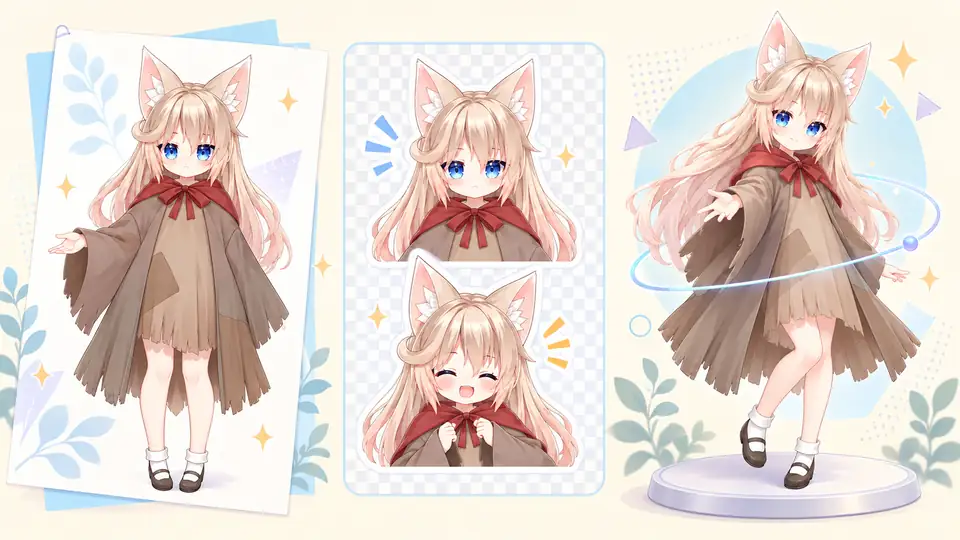
Start with the file you need
An AI VTuber maker might give you a character illustration, several PNG expressions, or a downloadable 3D avatar. Those are different purchases. Before comparing image quality or generation prices, ask what you can actually do with the result in your chosen streaming application.
A single illustration can already appear on a stream as a static image. For a basic reactive PNGTuber, you can prepare speaking and silent states without building a rig. A deforming Live2D character or a tracked 3D avatar needs a different set of assets and setup steps.
This guide compares those workflows, including where Virmii fits. It is not a timed benchmark or a hands-on ranking of competing generators. Virmii's descriptions were checked against its current implementation on October 13, 2026.
| What you want | What to look for | What remains to do |
|---|---|---|
| A character concept or static stream image | A usable image at the resolution you need | Inspect the design, prepare the background, and add it to your scene |
| A voice-reactive PNGTuber | Consistent silent and speaking images, with optional extra states | Assign the images in a reactive-avatar app, select the microphone, and test the threshold |
| A deforming 2D avatar | A finished Live2D runtime model, or artwork plus a separate rigging service | Finish any missing rigging, configure a compatible tracker, and test the output |
| A 3D avatar for another tracking app | A downloadable model in a format and version that app accepts | Inspect the rig, expressions, materials, and actual behavior after import |
| A generated 3D character for Virmii's live workflow | A completed Virmii model and, if wanted, separately generated expression artwork | Test Live Studio and connect the private stage URL to an OBS Browser Source |
If you are still choosing a format, the PNGTuber, Live2D, and 3D comparison covers the broader tradeoffs.
Character images, PNG packs, and rigged models are different deliverables
Character artwork
A flat PNG or JPG is useful for exploring a design, preparing a channel image, or briefing an artist. It does not contain independently movable eyes, a mouth rig, or a 3D skeleton.
For a Live2D workflow, artwork needs suitable separation and preparation before rigging. Hidden areas may need to be drawn, not just cut out of the original image. If the design will become a 3D model, an artist or generation service must create the geometry and other required model data.
That extra work is optional if all you need is a static image or simple image swapping. Do not buy a more complicated workflow just because a tool calls its output an "avatar."
Reactive PNG assets
A basic PNGTuber setup switches between images when microphone input crosses a configured threshold. Extra states can cover blinking or manually triggered expressions, depending on the application.
Check the images as a set. A speaking image with a different head size, eye position, or outfit detail will visibly jump when it replaces the silent image. Consistent framing can matter more than the detail in either individual picture.
This setup does not need a facial rig or a camera for its basic speaking response. More elaborate 2D-avatar tools can add movement and other controls, so judge the specific application rather than assuming every PNG-based setup behaves identically. Even a lightweight setup still uses system resources when combined with a game and OBS.
Layered artwork and finished Live2D models
A layered PSD is source artwork, not a finished tracking model. Rigging is authored in a tool such as Live2D Cubism. A runtime delivery commonly contains .moc3, .model3.json, textures, and supporting files; the Live2D export documentation describes these files.
VTube Studio is a playback and tracking option for compatible Live2D models. Its official model guide specifies Live2D support; it is not a general-purpose VRM tracker. If a generator advertises "Live2D-ready" output, ask whether that means prepared artwork or an exported, rigged runtime package.
Generated 3D models
A textured mesh can look convincing in a rotating preview while still lacking the rig and expressions needed for your stream. An export labeled GLB or glTF does not, by itself, establish that the model is a usable humanoid avatar.
VRM is a humanoid-avatar format based on glTF 2.0. Its specification covers avatar information beyond the visible mesh, but the file extension is not a promise that every expression or secondary-motion effect you want has been authored.
Ask which VRM version the target application accepts, then inspect an actual export. The VRM file guide explains what to check before moving an avatar between applications.
The work between generation and a usable stream
Rigging, expression authoring, tracking, and broadcasting solve different problems. A generator may handle some of them and leave others to you.
A skeleton lets a model's body parts move. Facial deformation needs suitable geometry and bindings. Tracking supplies control values, but it cannot create a missing mouth shape or repair a broken eyelid. Hair movement also depends on the model and the receiving application's support, not simply on whether a webcam is connected.
Expression playback can use mesh deformation, texture changes, or application-specific rendering. These approaches can all affect what you see on screen, but they do not necessarily travel together in a downloaded file.
Before accepting an avatar, check it at your intended stream size:
- Turn the head in both directions and look for collapsed shoulders, clipping, or unexpected stretching.
- Blink and reopen the eyes; check each side and the return to neutral.
- Open and close the mouth, then pause. Watch for stuck expressions or abrupt transitions.
- Inspect hair, clothing, and accessories during movement rather than only in a still preview.
- Run the avatar alongside your usual game, browser tabs, and recording settings.
If you need help with camera calibration rather than model repair, use the webcam face-tracking guide. If the model itself needs work, compare a new generation with the cost of editing the actual file. Neither is automatically the cheaper option.
Where Virmii fits
Virmii accepts a character reference image or text description and provides a generation workflow that can produce a downloadable 3D VRM. Review the completed result before relying on it: generation can change proportions, facial details, clothing, or other parts of the design.
The web interface brings model preparation, previewing, and live use into one workspace. That does not mean all generation runs locally in your browser. Generation involves backend services; displaying the avatar and running camera tracking still use your device's resources.
A showcase example: reference image and generated model
The streetwear boy in Virmii's showcase gives you an actual reference-to-model comparison. Follow the two-tone hair, orange jacket, and sneakers across the images, then compare the face and body proportions. The generated model is an interpretation of the reference, not an exact three-dimensional copy.
| Original character reference | Generated 3D model preview |
|---|---|
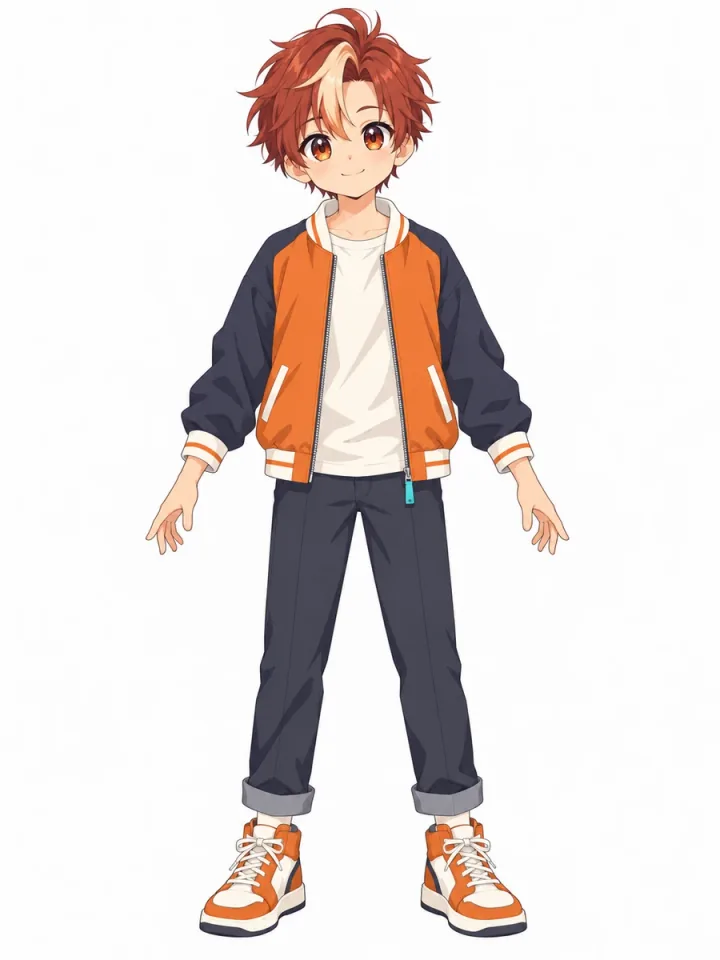 | 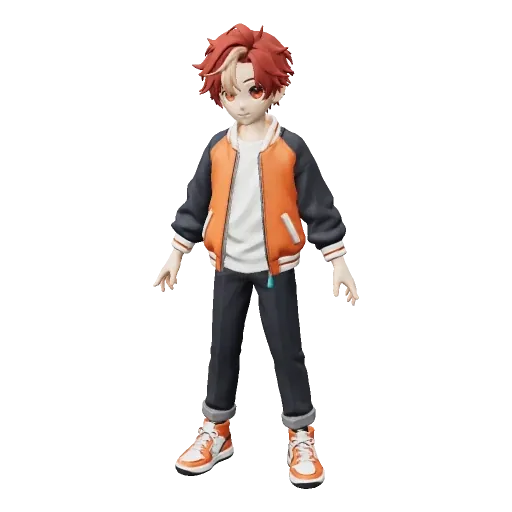 |
These are existing showcase assets, not results from a new comparison test. Open the interactive model to rotate it and inspect the side and back; a still preview cannot establish tracking quality or compatibility with another application.
In-app expressions and downloaded expressions are separate
For Virmii-generated models, Generate expressions is a separate action that prepares AI expression artwork for playback in Virmii previews, Live Studio, and the OBS stage.
That artwork is not embedded in the downloaded VRM as facial shape keys. Do not expect an exported model in another application to reproduce the facial behavior you saw inside Virmii. A compatible uploaded VRM uses its existing expression bindings instead of automatically inheriting a generated model's separate artwork.
The AI expression guide explains this boundary. If portable facial expressions are a requirement, test the downloaded file in the intended application and budget for any missing authoring work.
The same showcase character illustrates Virmii's in-app expression playback:
| Neutral expression preview | Open-mouth expression preview |
|---|---|
 | 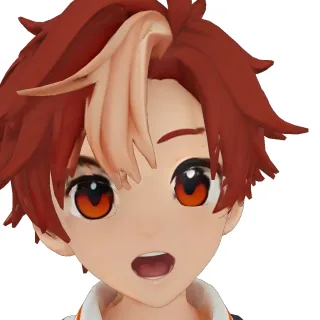 |
These images show expression states on the 3D avatar inside Virmii. They are not a PNGTuber asset pack or proof of embedded VRM facial shape keys. Try the expression controls on the showcase page to see the distinction in context; the separate AI expression artwork is not included in the VRM download.
Camera tracking and the OBS connection
Virmii uses camera-derived face-tracking data to drive supported head and facial responses. Its camera request does not capture microphone audio for phoneme recognition. Configure your stream microphone separately in OBS, and do not treat camera-driven mouth movement as an audio lip-sync system.
The supported OBS workflow uses a private Browser Source URL. Live Studio acts as the tracking controller, sends movement data through a WebRTC data connection, and the stage page renders the avatar in OBS. Keep the controller open during use and keep the stage URL private.
OBS Virtual Camera is a different feature: it sends an OBS scene to applications that accept webcam input. It is not the connection that imports a Virmii avatar into OBS. See the OBS Virtual Camera guide if you want to use your composed scene in a call or another webcam-based application.
For setup instructions, follow the Virmii image-to-avatar and OBS tutorial.
Run your own same-reference comparison
Use one character reference you have permission to use, and decide what a successful recording should show. This is a test procedure you can follow, not a report of benchmark results.
- Choose a common framing, such as a chest-up avatar beside your game. List the design details you want to preserve.
- For the image route, prepare the still or reactive states and check for visual jumps between them.
- For a 3D route, inspect the generated model from several angles before configuring tracking.
- Test the expressions available in the live application. If you need an export, test that file separately in the destination app.
- Add the supported output to OBS, configure audio, and make a short recording with your normal content running.
- Record the time and money spent on rejected attempts, cleanup, configuration, and testing, as well as the successful generation.
For Virmii, the sequence is: image or text input → generation and inspection → optional expression generation → Live Studio tracking → private OBS Browser Source → recording test.
There is no fixed generation or setup time that applies to every tool, model, and computer. A fast first preview is useful, but the comparison should end at a recording you would be willing to publish.
Compare cost through the first usable recording
The price per generated image or model leaves out much of the decision. Keep a small budget for the whole setup:
| Budget item | What to check |
|---|---|
| Generation | Credits per attempt, included allowances, and whether another attempt incurs another charge |
| Expressions and rigging | Whether these are included, optional paid steps, or work for a separate artist |
| Repairs and revisions | Whether you can edit the result, what source files are provided, and who can make the required changes |
| Software and hardware | Required subscriptions, supported equipment, and whether your existing setup performs adequately |
| Failed or unwanted results | The distinction between a technical failure and a completed result you do not like |
Virmii model generation and expression generation use credits or applicable plan allowances. Browser tracking does not make those generation steps free. Check current pricing and the refund policy rather than assuming a particular subscription includes unlimited attempts or guarantees a usable result.
For a design with strict visual or technical requirements, get a comparable commission quote. Specify the required expressions, target software, revisions, and delivery files. The AI models versus commissions guide covers that choice in more detail.
Check permissions for the actual use
Do not infer a license from a file type, a "free" label, or a paid subscription. Check the chosen service's terms and any licenses attached to source images, model parts, or other assets. Ask about the uses you need, including monetized streams, merchandise, modifications, and sharing files with a rigger.
Virmii's Terms of Service govern its outputs and require appropriate rights in your inputs. They do not promise unique output, exclusive ownership, or legal clearance for a character. Check those terms before commercial use; this comparison is not a license grant.
Before choosing an AI VTuber maker
Ask for an example of the actual deliverable, not just a promotional animation. Can you download it? Which application can open it? Do the expressions in the preview also work in the export?
Then decide which work you are willing to do. A reactive PNG setup can be enough for a first stream. Live2D is a separate route when you want authored 2D deformation. A 3D workflow makes sense when you want a spatial model and can meet its rigging, compatibility, and performance requirements.
Virmii is an option if you want to generate a 3D character and test its browser-based live workflow. Start with one result, inspect it, and record a test before spending on further variations. Use the setup checklist when you are ready to prepare the rest of the stream.
Frequently asked questions
Can an AI image generator make a finished Live2D model?
A flat image output is not a finished Live2D model. It can be source material, but artwork preparation, rigging, and runtime export are separate requirements. Check whether a service actually supplies those deliverables rather than assuming that "VTuber art" includes them.
Does a PNGTuber need a webcam?
A basic microphone-reactive image setup does not. Speaking and silent images can switch based on audio input. Additional movement or tracking depends on the application and configuration you choose.
Does a VRM guarantee full facial or body tracking?
No. The model must contain the required rig and expression data, and the application must support both that data and the tracking inputs. A file that loads successfully can still lack the facial behavior you need. Head tracking also does not establish full-body tracking support.
Do Virmii's generated expressions work in another VRM app?
The separately generated expression artwork is for Virmii previews, Live Studio, and its OBS stage. It is not embedded in the downloaded VRM. Check the exported model's own expression data in the receiving application.
Does Virmii need a virtual-camera driver to appear in OBS?
No dedicated Virmii virtual-camera driver is part of this workflow. Add the private stage URL as an OBS Browser Source and use Live Studio as the tracking controller. Configure your microphone and other scene sources in OBS separately.
Is a browser-based avatar free of local CPU and GPU load?
No. Tracking and rendering still use your computer, and OBS also needs resources to compose and encode the stream. Test the combined workload on your own hardware instead of assuming that no desktop installation means no performance cost.